Getting started
Connect your own Odoo
If your business already runs its own Odoo 19 (Community or Enterprise), you can add Juni to it. Every call Juni answers then shows up in your Odoo with the caller, summary, transcript and recording, linked to the customer.
Where: Settings, Connect Odoo in the JuniVoice app, then JuniVoice, Configuration, Settings in your Odoo.
Steps
- Start a JuniVoice trial at getjunivoice.com (start free, no card needed) and set up Juni for your business.
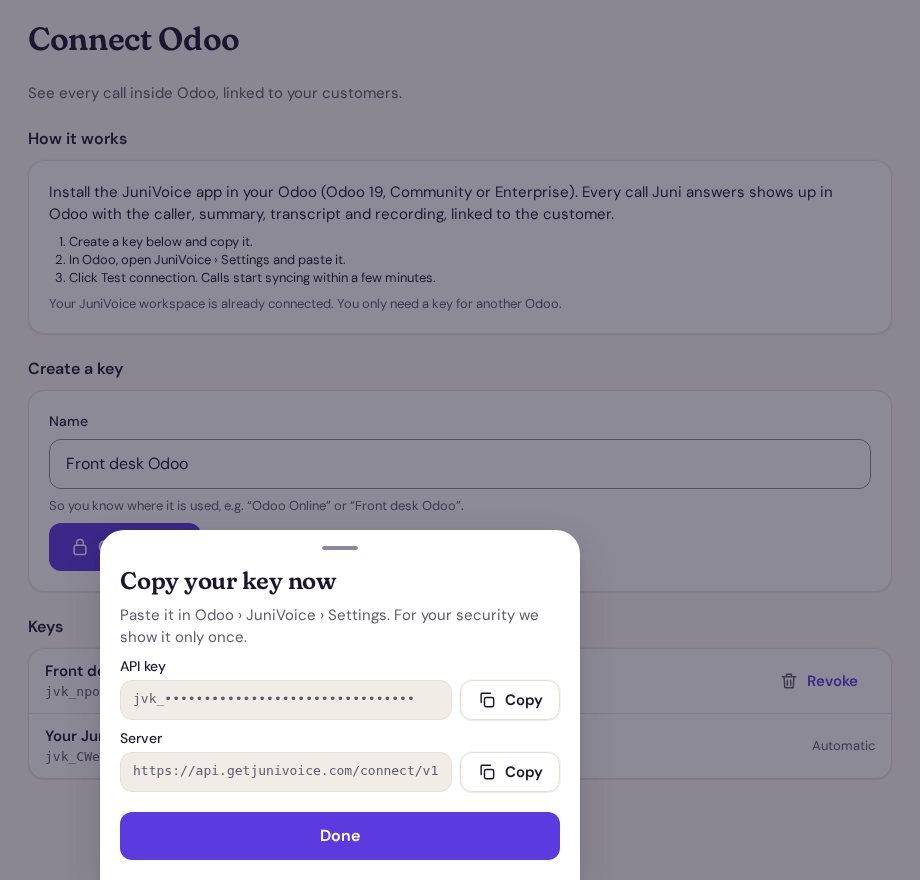
- In the JuniVoice app, open Settings, then Connect Odoo. Give the key a name (for example "Front desk Odoo"), tap Create key, then Copy. The key works like a password that lets your Odoo read your calls: keep it private. You can revoke it on the same screen at any time.
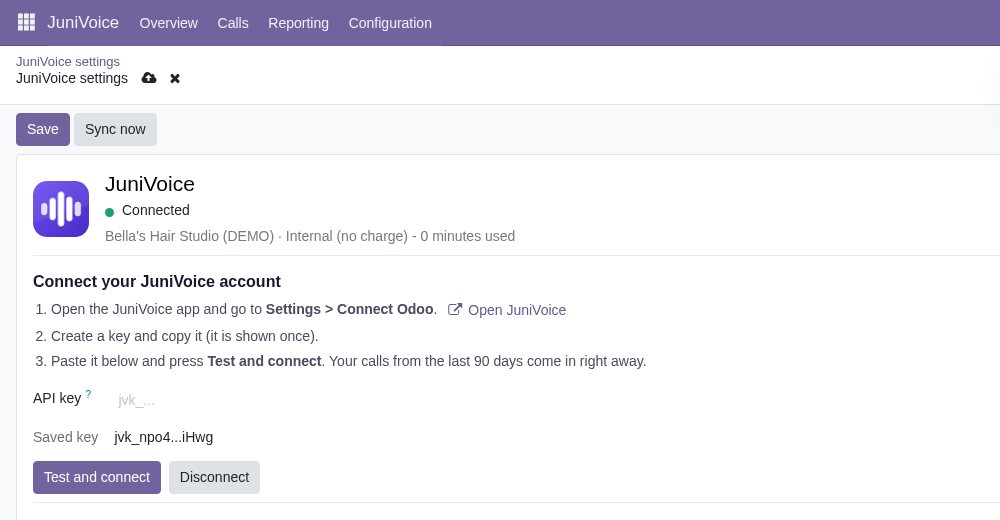
- In your Odoo, install JuniVoice – AI Receptionist from the Odoo Apps Store. Open JuniVoice, then Configuration, Settings, paste the key under API key and click Test and connect. Your calls from the last 90 days appear right away.
Good to know
- Your JuniVoice workspace is connected automatically. You only need a key for another Odoo.
- The key is shown once. If you lose it, revoke it and create a new one.
- The Odoo app is free. It works with Odoo 19, Community or Enterprise, and needs a JuniVoice trial or plan.
Checked against the JuniVoice app on October 30, 2026. Menu names may change slightly; tell us if something doesn't match.